Booked Solid gets dramatically more useful once it can see the tools you already run your business on: your email, your calendar, your payment processor, your file storage. The Connectors tab is where all of that plugs in, and in most cases the app does the heavy lifting for you.
Open the Connectors tab
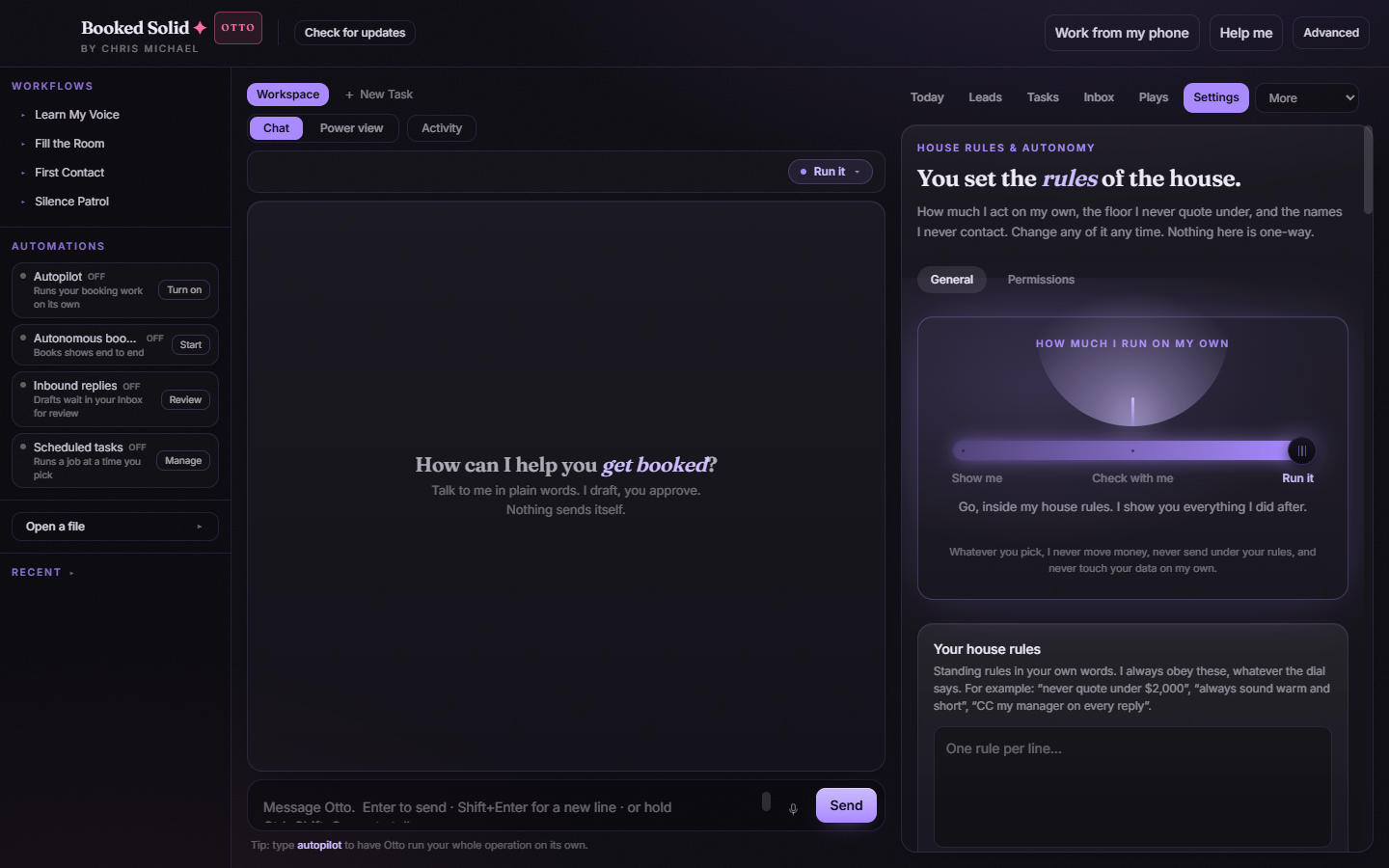
- In the right pane, open the More menu and choose Connectors.
- Or click Work from my phone in the top bar - it opens the same Connectors tab.
The tab lists everything the app can connect to: your AI runtime, your computer and browser, lead finders, inbox, calendar, files, payments, messaging, hosting, CRM, and media tools.
Let the app find what is already on your computer
When Booked Solid spots a credential that already exists on your machine, it shows a Found on your computer card with two choices:
- Use this - adopt the existing key in one tap. Nothing to copy, nothing to retype.
- Skip - ignore it and connect another way later.
What the statuses mean
Every connector shows its current state at a glance:
- Connected - the service is linked and working.
- Linked - the account has been tied to the app through its own sign-in.
- Key saved - you have stored an API key for this service.
- Not yet - nothing is set up for this one so far.
Three ways to connect a service
- Sign in on the provider's own page. Account connectors like Gmail, Calendar, and Drive link by OAuth on claude.ai/settings/connectors. You sign in on the provider's page in your browser - your password never enters the app.
- Set this up for me. Click this button and the engine does the setup itself, then hand-holds you through only the steps that genuinely need a human. This is the easiest path if you are not sure what a connector wants.
- Paste a key. For services that use an API key, paste it once and it is encrypted in the vault and never shown again. The full walkthrough is in the article about choosing your AI and adding an API key.
Manage a connector you already set up
Once a connector is live, each one carries its own controls:
- Manage - opens the service's own page so you can adjust things at the source.
- Check usage - opens the provider's usage page, handy for keeping an eye on paid services.
- Remove key - deletes a stored key from the app.
Looking for more tools?
The Discover integrations entry on this tab scans your computer for tools you have already configured for other apps and offers to add them here. See the article on optional add-ons for how discovery works and what access newly added tools start with.
Still stuck? Submit a ticket from this help center and we'll take it from there.
Was this article helpful?
That’s Great!
Thank you for your feedback
Sorry! We couldn't be helpful
Thank you for your feedback
Feedback sent
We appreciate your effort and will try to fix the article