This article explains how the Microsoft 365 connection signs in, exactly what Otto is allowed to see and do in your Outlook, Teams, and files, and how to fix the one common snag: drafts turned on but the sign-in is still read-only.
Sign-in is by device code - no password ever touches the app
Microsoft 365 does not ask you to type your Microsoft password into Booked Solid OS. Instead it uses a device code: you sign in on microsoft.com/devicelogin with a short code, in your own browser, on Microsoft's own site. Booked Solid OS never sees or stores your password.
- Find the Microsoft 365 card in the app's add-ons area (it covers Outlook and Teams).
- Start the sign-in. You get a short code and a link to microsoft.com/devicelogin.
- In your browser, enter the code and sign in with Microsoft as you normally would.
- Back in the app, switch the Microsoft 365 add-on on. If you skipped the sign-in, it refuses with Sign in to Microsoft first (on its card), then switch it on.
What Otto can read, and the one thing it can write
The sign-in asks Microsoft for a deliberately small set of permissions:
- Read only: your profile, mail, calendars, Teams chats, and files.
- The only write permission: creating email drafts (Mail.ReadWrite).
The permission to send email (Mail.Send) is deliberately never requested. That is not a missing feature - it is the design. Otto can prepare a reply as a draft in your Outlook, but the send button is always yours. Sending stays in Outlook, with you.
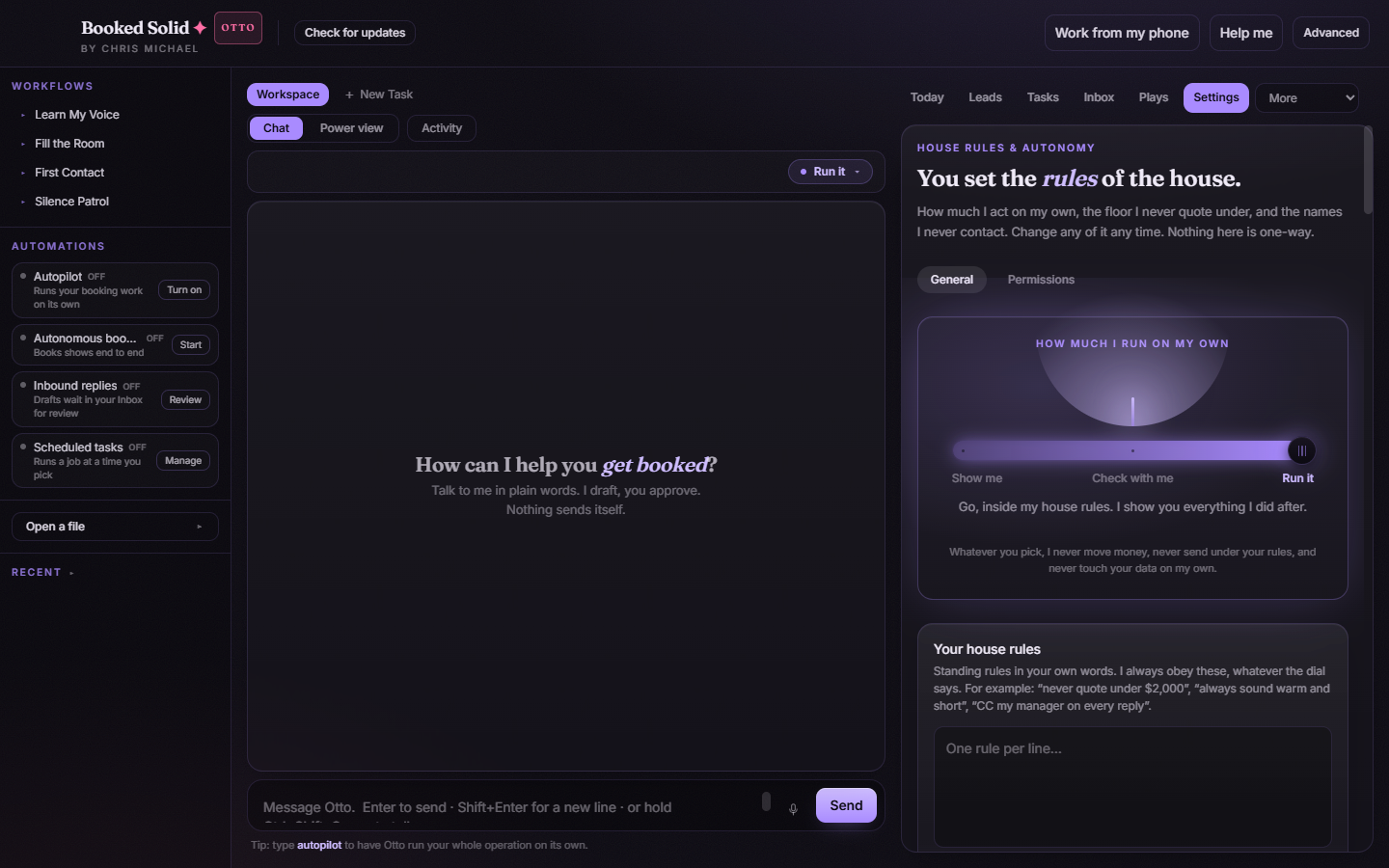
Like every integration in Booked Solid OS, Microsoft 365 starts with read access and drafts routed through your approval. You can adjust its reach on Settings under Permissions.
If you enable drafts later: sign out and back in
Here is the snag worth knowing about. The permissions Microsoft grants are fixed at the moment you sign in. If your existing sign-in was read-only and you later enable draft creation in Permissions, the old sign-in does not have the draft permission - so drafts cannot appear in Outlook yet. The Microsoft 365 card warns you about exactly this: sign out of Microsoft on the card, then sign back in. The fresh sign-in includes the draft permission and drafts start working.
Good to know
- No password is ever pasted into or saved by the app - the whole sign-in happens on Microsoft's site.
- Otto can read Teams chats but the connection is scoped to reading; it is not a Teams posting tool.
- Even with drafts enabled, nothing is sent from your Outlook by the app. You review and send every message yourself.
Still stuck? Email bookedsolid@kivimedia.freshdesk.com and a person will help.
Was this article helpful?
That’s Great!
Thank you for your feedback
Sorry! We couldn't be helpful
Thank you for your feedback
Feedback sent
We appreciate your effort and will try to fix the article