Booked Solid runs on an AI engine you choose: Claude, ChatGPT, or Gemini. You connect the one you prefer by adding its API key on the Connectors tab, and the key is encrypted the moment you save it - it is never displayed again, not even to you.
Add your API key
- Open the Connectors tab (right pane More menu, then Connectors).
- Find the AI runtime connector for the provider you want to use.
- Click Paste key. A small window opens.
- Type a label so you can recognize the key later, for example "My Claude key".
- Paste the key into the key field. It is masked like a password while you type.
- No key yet? The window includes the provider's own how-to steps, and the Open the key page link takes you straight to the page where that provider issues keys. Create one there, copy it, and come back.
- Click Save securely. If you change your mind, click Cancel and nothing is stored.
How your key is protected
Two things are worth knowing before you paste anything:
- Keys are encrypted in the vault and never shown again. Once saved, the app uses the key on your behalf but will not display it. If you ever need the raw key again, get it from the provider's key page, not from the app.
- The app warns you if secure storage is unavailable. On machines where the secure vault cannot be used, a warning banner appears so you can decide whether to proceed. If you see that banner and are unsure, hold off and contact support.
Pick which assistant runs, and how thorough it should be
Connecting a provider is one half. The other half is telling the app which assistant to use and how hard it should think:
- Click Advanced in the top bar.
- Use the Assistant select to choose which AI runtime handles your chats and tasks.
- Use the Thoroughness select to choose the model tier - quicker and lighter, or slower and more careful.
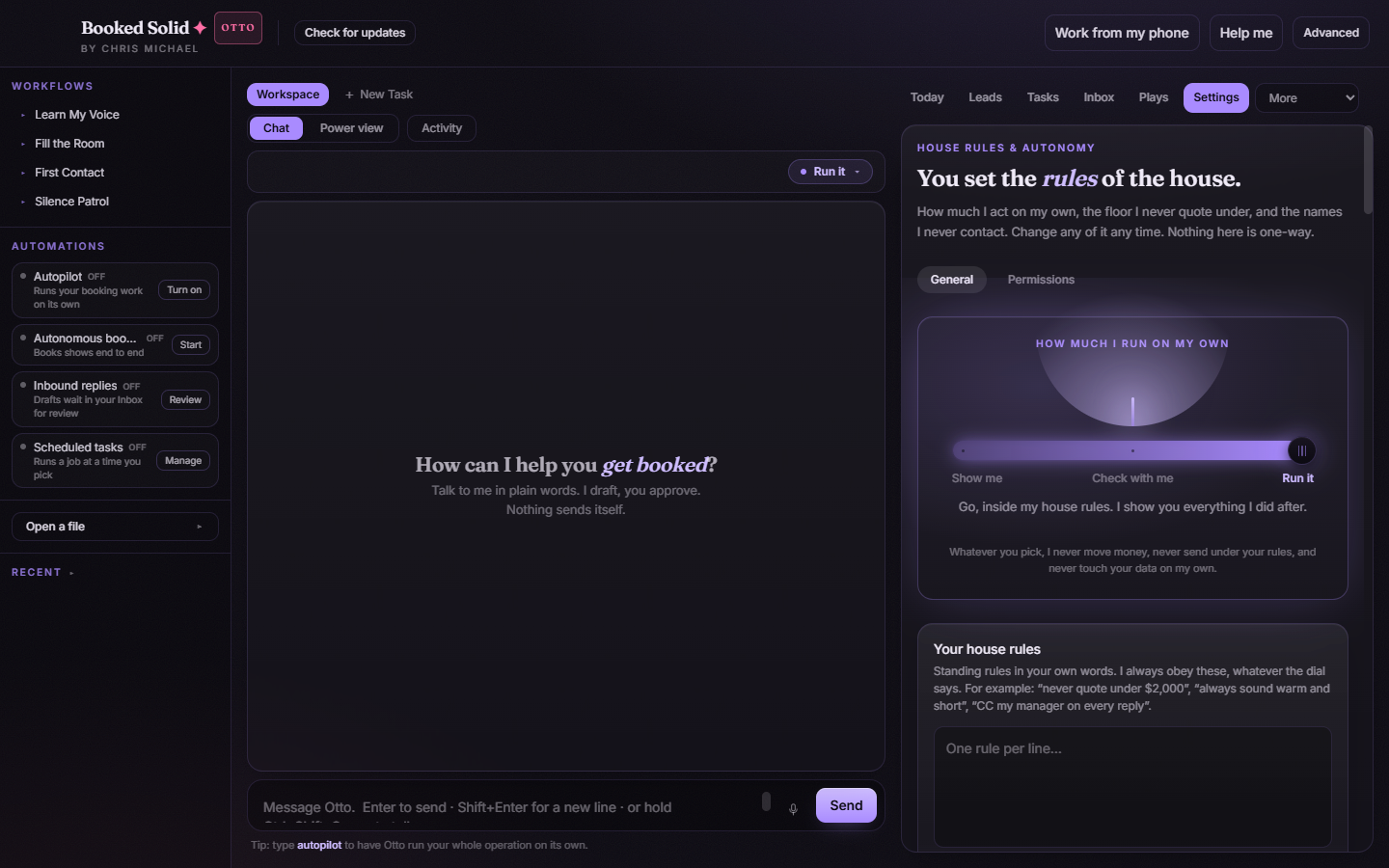
You can switch these at any time. A common setup is to keep Thoroughness low for everyday drafting and turn it up when the work matters, like a tricky quote or a long client thread.
Which provider should you pick?
Whichever one you already have an account with. All three plug in the same way: paste the key, save securely, and select it as your assistant under Advanced. If you have no account with any provider yet, open the Paste key window for the one you lean toward and follow its how-to steps - the Open the key page link lands you exactly where you need to be.
Still stuck? Submit a ticket from this help center and we'll take it from there.
Was this article helpful?
That’s Great!
Thank you for your feedback
Sorry! We couldn't be helpful
Thank you for your feedback
Feedback sent
We appreciate your effort and will try to fix the article