Chat is where you talk to Otto in plain words. It is the default view of every task tab: you type what you want, Otto drafts and answers, and nothing ever sends itself. Emails, replies, and anything outgoing stay as drafts until you approve them, so you can ask for anything without worrying that a half-formed idea will reach a client.
Where chat lives
Every task tab opens in Chat view. The switcher above the conversation shows Chat and Power view side by side, with Chat selected by default. Each tab is its own separate conversation, so you can keep several tasks going at once without them mixing.
Send a message
- Click into the message box at the bottom of the Chat view.
- Type your request in everyday language. No commands or special syntax needed.
- Press Enter to send, or click the Send button. Use Shift+Enter when you want a new line inside the same message.
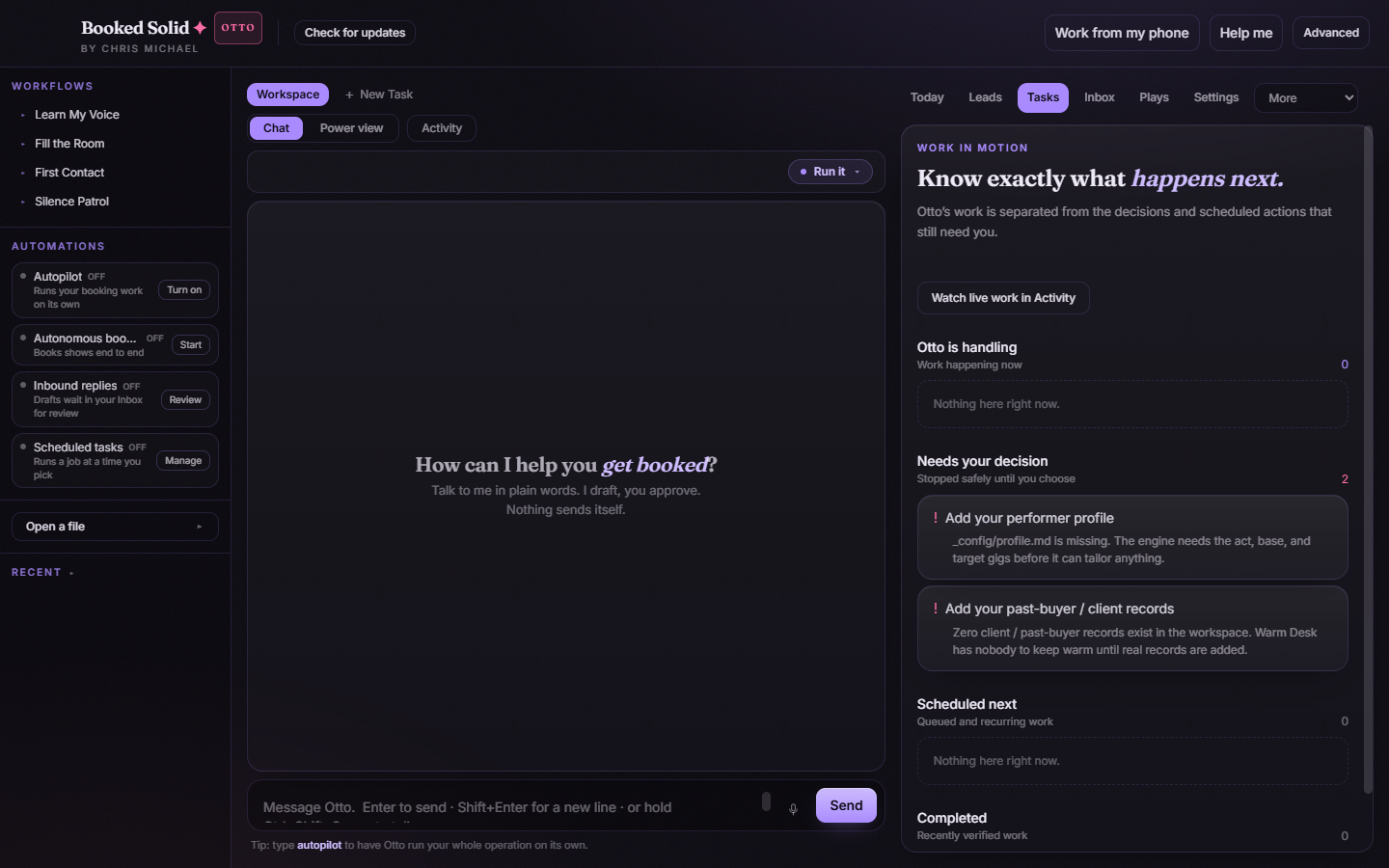
Otto streams the reply as he works. Above his answers you will see small tool chips: plain phrases describing what he actually did, such as reading a file or looking something up. That way you always know how an answer was put together.
Sharpen a rough request with Forge this
Not sure how to word what you want? Type it roughly, then click Forge this. It rewrites your request in place, turning it into a clearer, sharper version right there in the message box. Forge this never sends anything: you get to read the improved wording, tweak it if you like, and press Send yourself.
Dictate instead of typing
The mic button next to the message box lets you speak your request instead of typing it. Talk naturally, and your words land in the chat box for you to review and send.
Recommendation cards fill the box for you
When Otto suggests a next move elsewhere in the app, those recommendation cards do not run anything on their own. Clicking one simply prefills this chat box with the suggested request. You read it, change anything you want, and press Send when you are ready. Nothing happens until you do.
Start a fresh conversation
When a conversation has run its course, use the Start fresh link. To protect you from an accidental click, it asks you to confirm first: choose Yes, start fresh to clear the conversation, or Keep it to change your mind. If Otto is mid-reply when you confirm, the running turn is cancelled first, then the slate is wiped clean.
Tip: the autopilot shortcut
Typing exactly autopilot or run autopilot in the chat box does something special: instead of a normal chat reply, it starts the Autopilot flow, where Otto runs your whole booking operation on his own. Keep that in mind if you literally want to chat about autopilot - phrase it differently, for example "tell me about autopilot".
The golden rule
Chat produces drafts and answers only. No email, message, or reply goes out from a chat conversation without you approving it. You stay in charge of everything that leaves your business.
Still stuck? Submit a ticket from this help center and we'll take it from there.
Was this article helpful?
That’s Great!
Thank you for your feedback
Sorry! We couldn't be helpful
Thank you for your feedback
Feedback sent
We appreciate your effort and will try to fix the article