Installing Booked Solid on Windows takes about a minute: run the installer, click past one blue Windows warning, and sign in. The warning looks alarming, but it is expected - this article shows you the exact two clicks that get you through it.
Step 1: Run the installer
- Locate the Booked Solid installer you downloaded. It is a file ending in .exe, usually in your Downloads folder.
- Double-click it to start the installation.
Why you see "Windows protected your PC"
When you run the installer, Windows may show a blue screen that says "Windows protected your PC". This comes from Microsoft SmartScreen, a filter that flags apps it has not seen downloaded many times before. Booked Solid is a newer app, so it has not yet built up that download reputation with Microsoft. The warning does not mean anything is wrong with the file - it just means Windows does not recognize it yet.
Getting past the warning: More info, then Run anyway
- On the blue screen, click More info. It is a small link right under the warning text, and it is easy to miss - if you only see a "Don't run" button, the More info link is just above it.
- A Run anyway button appears. Click it.
- The installer continues normally. Follow any remaining prompts until it finishes and Booked Solid opens.
First launch: sign in or activate
The first time Booked Solid opens, you will see the account screen:
- First time here? Click Enter your license code, then paste the code from your license email (it looks like BS-XXXXX-XXXXX-XXXXX), enter your email, and pick a username and password.
- Already set up? Just sign in with your username and password.
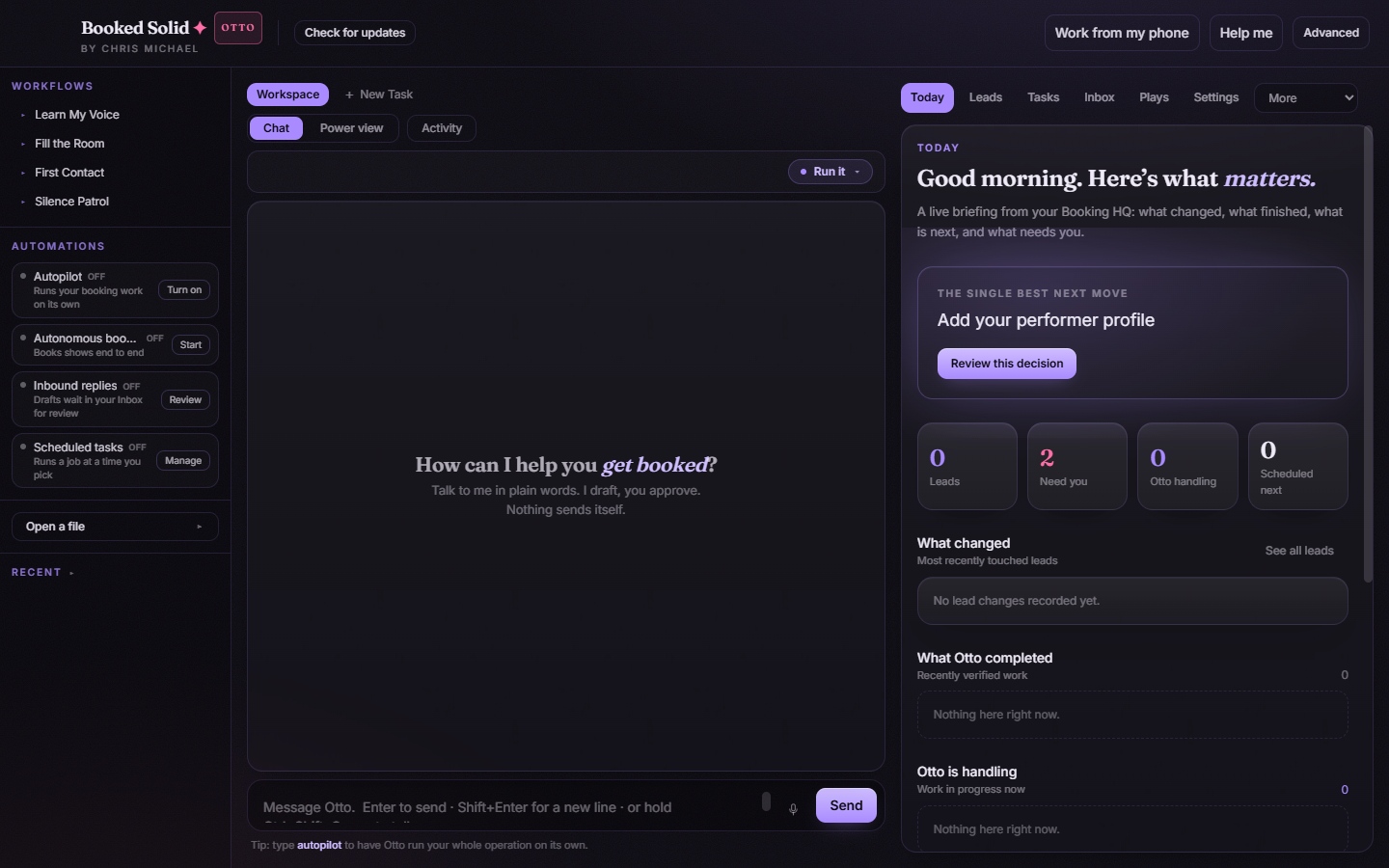
Once you are in, the app looks like this:
What happens after installation
You will not need to repeat any of this for updates. Booked Solid checks for new versions automatically every time it launches and downloads them quietly in the background - when one is ready, a small Update ready badge appears in the top bar and you restart whenever it suits you. See "How updates work" in this folder for the details.
Still stuck? Submit a ticket from this help center and we'll take it from there.
Was this article helpful?
That’s Great!
Thank you for your feedback
Sorry! We couldn't be helpful
Thank you for your feedback
Feedback sent
We appreciate your effort and will try to fix the article