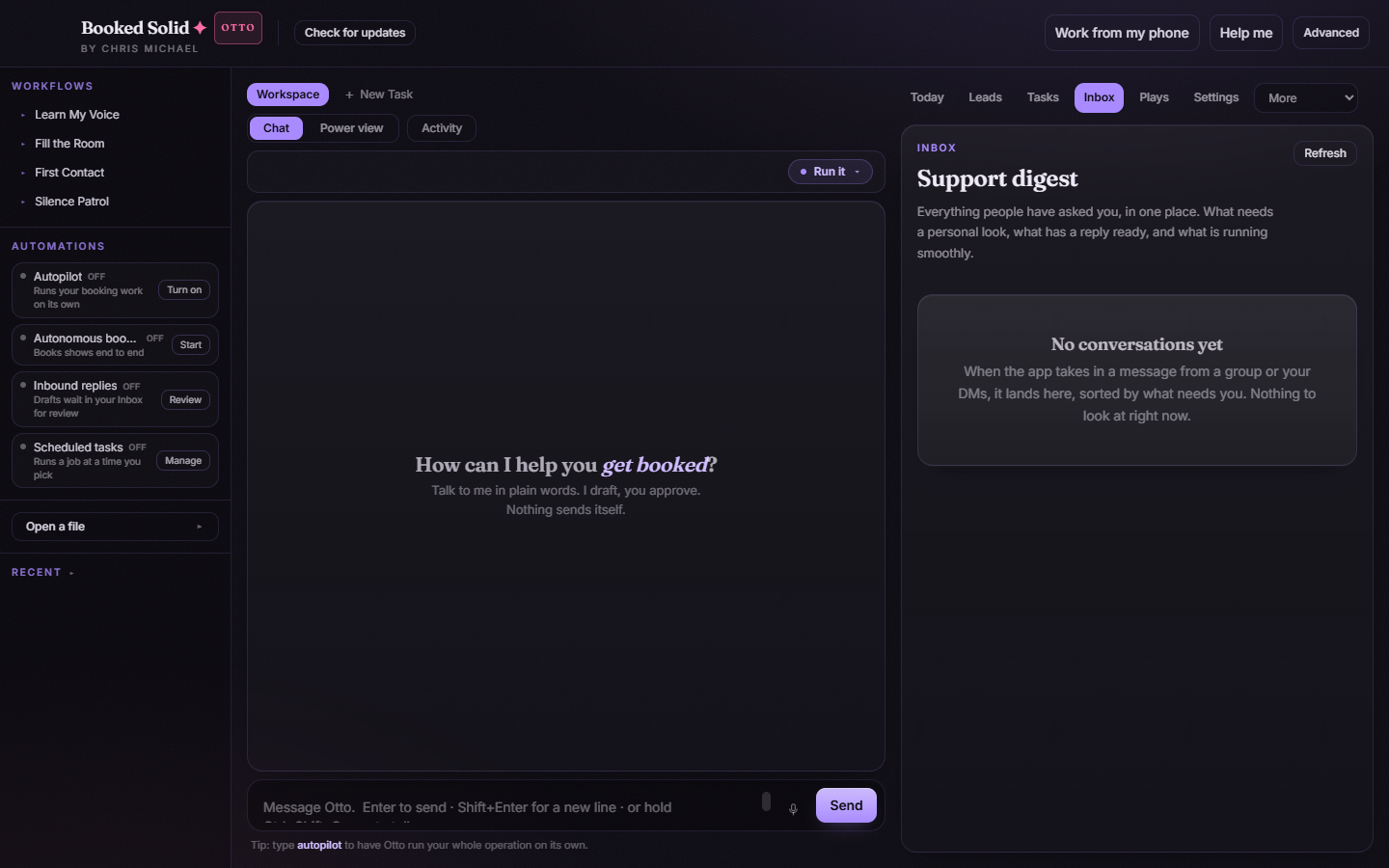
Anywhere you can type in Booked Solid, you can talk instead. Hold the dictation hotkey, say what you want, release, and your words land right at the cursor - with an optional tidy-up pass that removes the ums and fixes punctuation.
Two ways to start dictating
- Hold the hotkey: hold Cmd/Ctrl+Shift+Space anywhere in the app. Speak while holding.
- Click the mic: the chat and notes composers have a mic button built in, right next to Send.
While you talk
A waveform pill appears while the app is listening - it moves with your voice and goes flat when you pause. When you are done:
- Release the hotkey (or press the Done checkmark): your words are transcribed and dropped in where you were typing.
- Cancel (X) or Esc: throws the take away, nothing is inserted.
First use: a one-time voice download
The very first time you dictate, the app shows a short Getting your voice ready step while it downloads the local voice model. This happens once. After that, dictation is instant and runs on your own machine.
The ready pill: exact words or tidied version
After a take, a small pill shows a preview of the transcribed text with a few controls:
- Copy: copies the text to your clipboard.
- My exact words / Tidied version: swaps between the raw transcription and the cleaned-up version. The tidy pass removes filler words and fixes punctuation, and you can swap back to your exact words any time.
- Dismiss: closes the pill.
Dictation settings
Open Settings > General and find the Your voice section:
- Tidy up what I say: toggle whether the cleanup pass runs on your dictation.
- Hold-to-talk hotkey: pick a different key combination if the default clashes with something else on your machine.
Tips for good takes
- Put your cursor where you want the words to land before you start - the text is inserted at the cursor on release.
- Speak naturally. The tidy pass handles the ums, so you do not have to perform.
- On a Mac, the app may ask for microphone permission the first time - allow it and you are set.
Still stuck? Submit a ticket from this help center and we'll take it from there.
Was this article helpful?
That’s Great!
Thank you for your feedback
Sorry! We couldn't be helpful
Thank you for your feedback
Feedback sent
We appreciate your effort and will try to fix the article