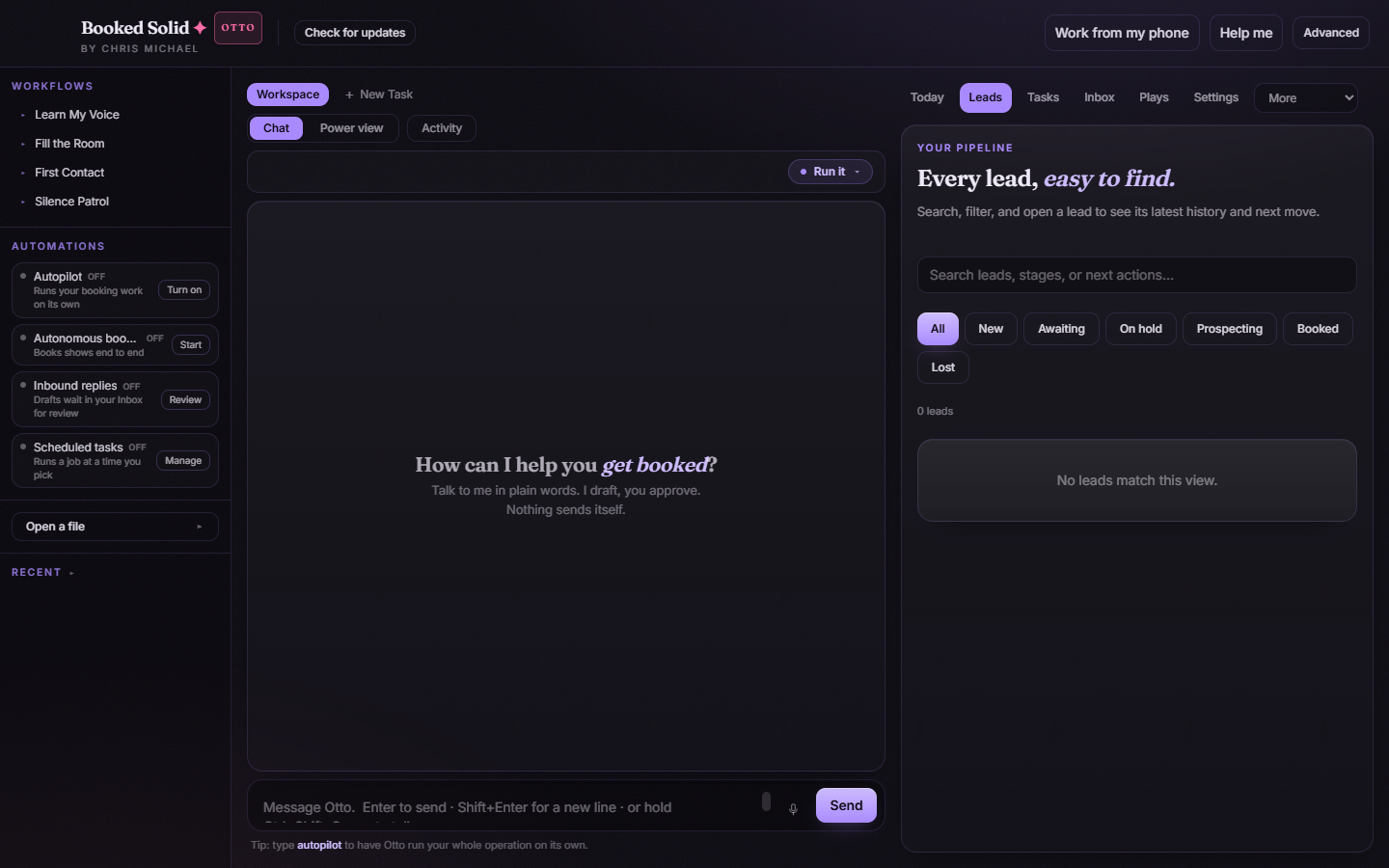
The Leads tab puts your entire pipeline in one searchable place. Every lead lives here with its stage, last contact, next move, and value, and expanding any lead shows its full history timeline - so you never have to reconstruct a conversation from memory before making your next move.
Open the Leads tab
In the right pane, click Leads in the tab row. You will see a search field, a row of filter chips, a count of how many leads match the current view, and the lead list below.
Search anything
The search field at the top accepts more than names: type a lead's name, a stage, or a next action, and the list narrows to what matches. This is the fastest way to answer questions like "who was that school event inquiry" or "which leads still need a quote."
Filter by stage
The chips under the search field filter the list to one stage at a time. The stages work the way they sound:
- All - every lead, no filter.
- New - leads that just arrived.
- Awaiting - waiting on a reply.
- On hold - paused for now.
- Prospecting - outreach in progress.
- Booked - won.
- Lost - did not work out.
Read a lead at a glance
Each row in the list shows the essentials without opening anything: the lead's stage, the last contact, the next move, and the value. That is usually enough to decide whether a lead needs you today.
Expand a lead for the full story
- Click a lead row to expand it in place.
- The expanded view adds the Organization and the Event date.
- Below those sits the History timeline - every touch on this lead in order, so you can read exactly what has happened before deciding what comes next.
If the list looks empty
"No leads match this view" means your current search or filter chip has narrowed everything out. Clear the search field and click All to see the complete pipeline again.
Getting here from other tabs
You do not have to start from the tab row. The Today tab links here in several places: the Leads stat button, the See all leads link in What changed, and any entry in the Follow-ups list all open the Leads tab for you.
Still stuck? Submit a ticket from this help center and we'll take it from there.
Was this article helpful?
That’s Great!
Thank you for your feedback
Sorry! We couldn't be helpful
Thank you for your feedback
Feedback sent
We appreciate your effort and will try to fix the article