The Booth turns your phone into Otto's approval desk. When Otto parks a decision for you - a send that needs a yes, a call you have to make - it lands on your phone as a Telegram card with Approve and Reject buttons. Tap one, and your verdict flows back into the app exactly as if you had pressed the button in person. You stay in control of every gated decision without being chained to your computer.
Before you start
- An Otto account. The Booth is an Otto-only feature. On the Pearl tier, the Booth card shows an Upgrade to Otto button instead, which opens the upgrade page at booked.kivimedia.co/upgrade.
- Telegram on your phone. The free Telegram app is how Booth cards reach you.
- About five minutes. Setup is two steps, done once.
Where to find the Booth card
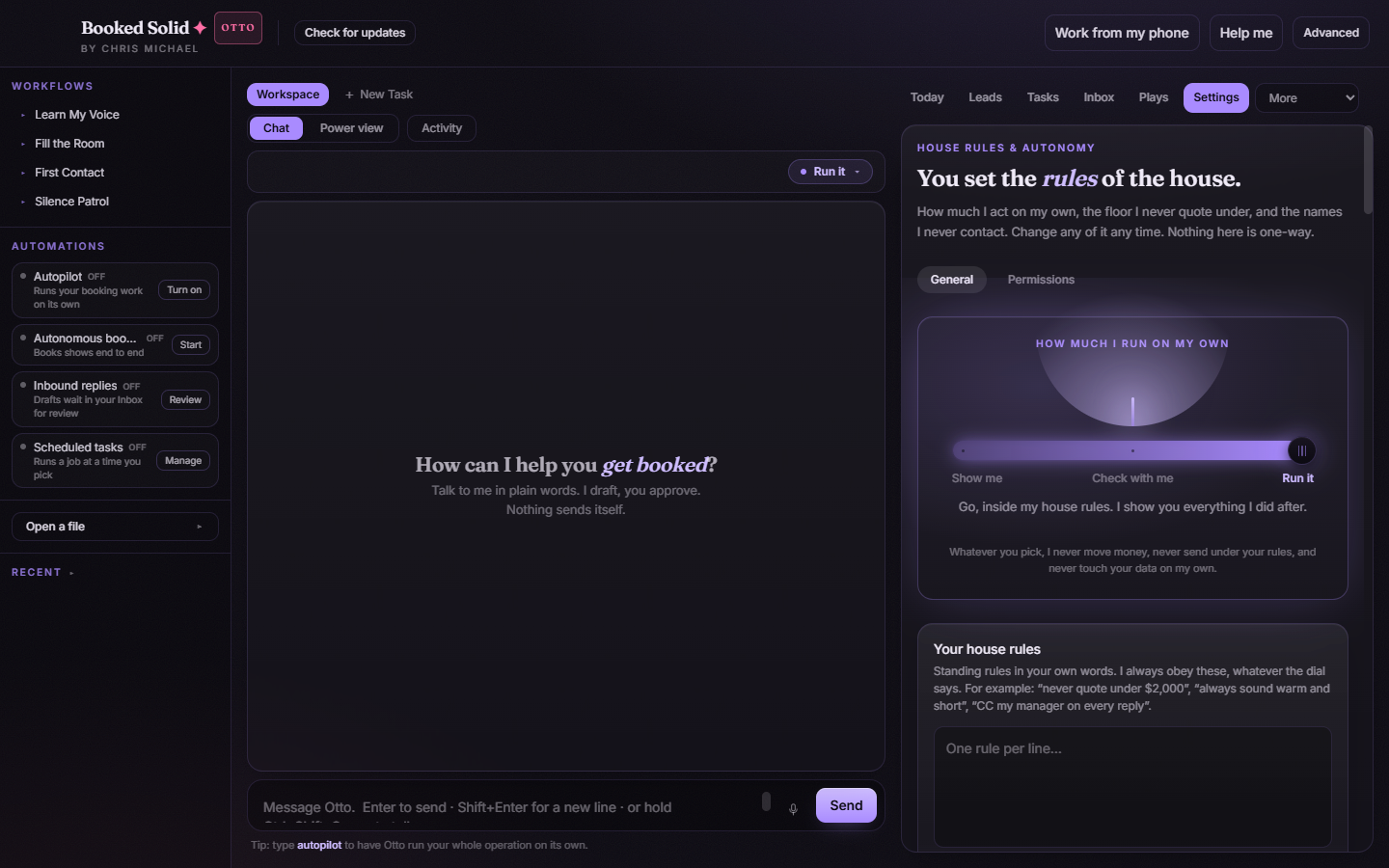
Open the Settings tab in the desktop app and stay on the General sub-tab. Scroll to the card called The Booth. If anything on the card is unclear as you go, tap the ? toggle on the card for inline help.
Step 1: create your bot and paste the token
The Booth talks to you through a private Telegram bot that belongs to you alone.
- In Telegram, open a chat with @BotFather (Telegram's official bot-maker).
- Send the command /newbot and follow the short prompts to name your bot.
- BotFather replies with a bot token - a long string of letters and numbers. Copy it.
- Back in the desktop app, paste the token into the Telegram bot token field on the Booth card and click Save (the button reads Update if you are replacing an earlier token).
Step 2: link your phone
- In Telegram, open a chat with the bot you just created and send it /start. This tells the bot which Telegram account is yours.
- Back on the Booth card, click Link my phone. The app pairs your Telegram account with your Booked Solid OS install.
- Watch the status dots on the card: Phone linked confirms the pairing, and the On/Off dot shows whether the Booth is currently active.
If you ever switch phones or Telegram accounts, send /start to the bot from the new account and click Re-link my phone on the same card.
Turning the Booth on and off
Once the Booth is configured, an on/off toggle appears on the card. Flip it off any time you want decisions to stay in the app only - for example, while you are sitting at your desk anyway. Flip it back on before you head out. The status dots always tell you the current state at a glance.
How it works on the road
While the app is open on your computer, the Booth poller watches for parked decisions - the same gate cards that appear on the Activity Board under Needs you. Each one is pushed to your phone as a Telegram card with Approve and Reject buttons. A tap on your phone applies through the same path as the in-app buttons, so there is no separate approval logic to second-guess: approving from a barstool is identical to approving from your desk.
Want to do more than a plain yes or no - say, edit the wording of a message before it goes out, or park it for later? Open the app and handle that card from the Activity Board, where Edit and Not now live alongside Approve.
On Pearl and curious?
Pearl accounts see the Booth card with an Upgrade to Otto button in place of the setup steps. Clicking it opens booked.kivimedia.co/upgrade, where the full Otto tier - including the Booth - is laid out.
Still stuck? Submit a ticket from this help center and we'll take it from there.
Was this article helpful?
That’s Great!
Thank you for your feedback
Sorry! We couldn't be helpful
Thank you for your feedback
Feedback sent
We appreciate your effort and will try to fix the article