On the Otto tier, Booked Solid can do standing work without you pressing anything: daily scheduled tasks that fire at a set time, and plays you've allowed to start themselves when something happens. Both live in Settings > General, and both follow the same rules and autonomy level as work you start by hand.
Scheduled tasks: the Runs on its own section
- Open Settings > General and find Runs on its own.
- Pick a preset from the select: Back up my data, Daily digest, Check a website, Follow-up sweep, or Something else. If you choose Back up my data, a folder picker lets you decide where the backups go.
- Choose the time of day with the time picker.
- Press Add. The task joins the list below.
Every task in the list carries three controls: Run now to fire it immediately, an on-off toggle to pause it without deleting anything, and Remove to take it off the schedule for good.
How the schedule behaves
- Tasks run daily at the time you set.
- They run only while the app is open.
- If your computer was asleep at the scheduled time, the missed runs fire after it wakes, so nothing silently skips.
- Scheduled work follows the same rules and autonomy level as jobs you run by hand - your house rules and approvals apply exactly the same way.
Keep an eye on it from the sidebar
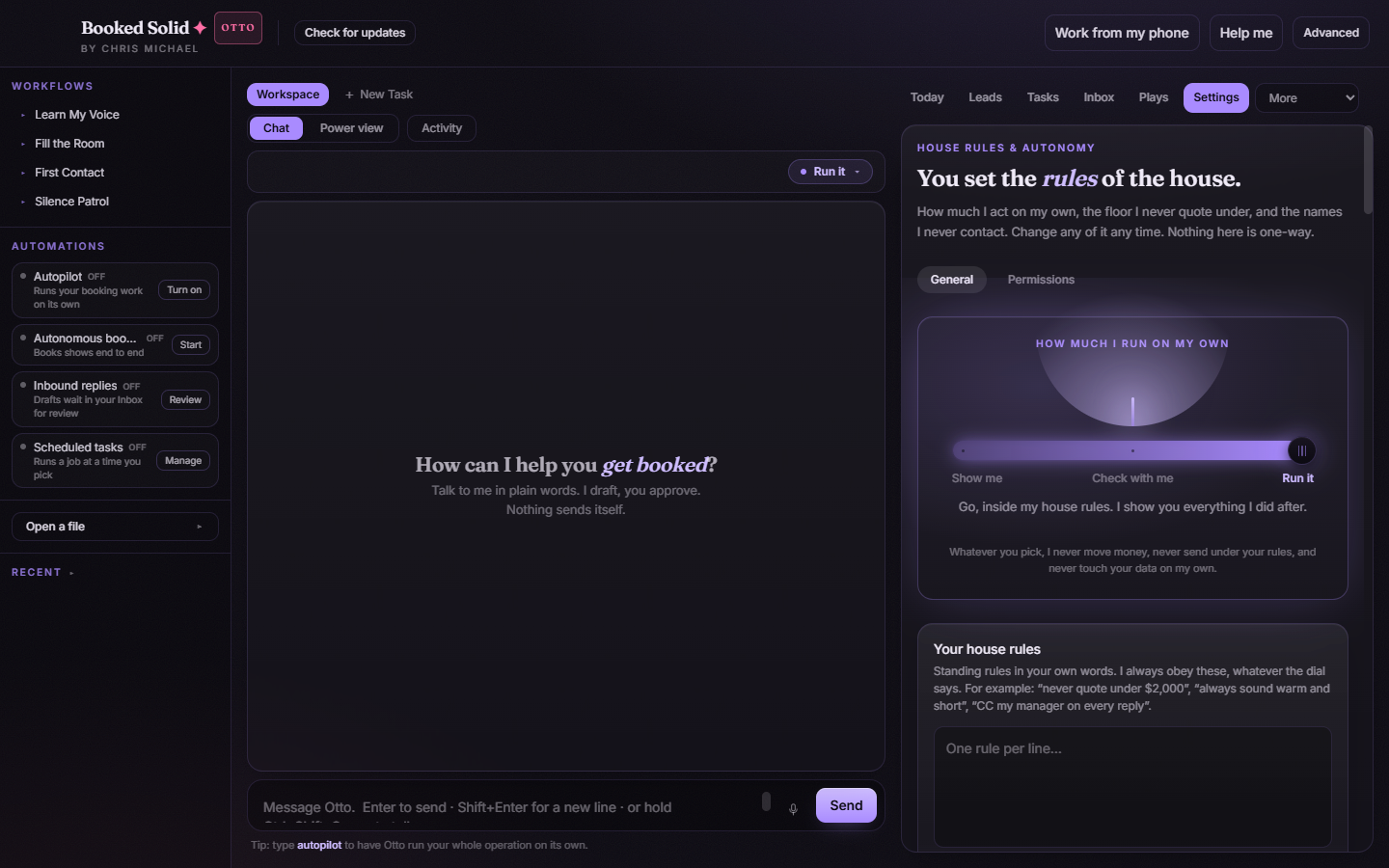
The Scheduled tasks row in the left sidebar shows a live count of your tasks plus a Manage button that jumps you straight to the right spot in Settings. One glance tells you how much standing work is set up.
Plays that may start themselves
Also in Settings > General you'll find Plays that may start themselves: a per-play opt-in toggle for event-triggered plays. Nothing starts itself unless you flip that play's toggle on, and you can flip any play back off whenever you like. It's strictly opt-in, play by play.
On the Pearl tier
Scheduling belongs to the Otto tier. On a Pearl account, the Set up the Autopilot schedule recipe on the Plays tab shows Upgrade to schedule instead of running, and tapping it opens booked.kivimedia.co/upgrade so you can see what the Otto tier includes.
Still stuck? Submit a ticket from this help center and we'll take it from there.
Was this article helpful?
That’s Great!
Thank you for your feedback
Sorry! We couldn't be helpful
Thank you for your feedback
Feedback sent
We appreciate your effort and will try to fix the article