Power view is an embedded terminal inside every task tab, for performers who are comfortable with a command line and want to work closer to the metal. Most people never need it - Chat does everything in plain words - but if you know your way around a terminal, the full workspace session is one click away.
Switch to Power view
- Open any task tab.
- In the switcher above the conversation, click Power view (Chat is selected by default).
- To return, use the toggle link: it reads Power-user view from the simple side and Back to simple view from the terminal side.
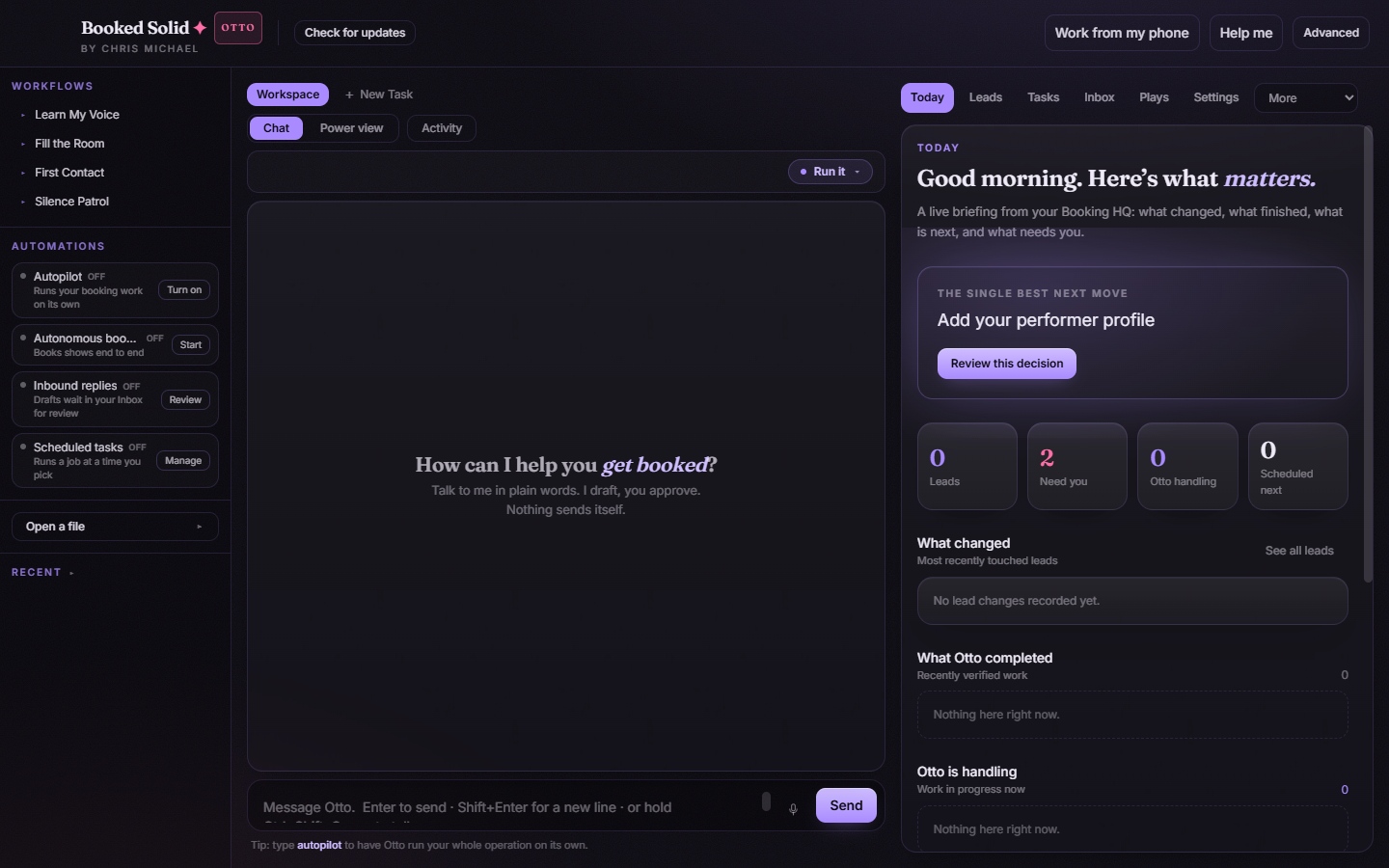
What you'll see
Power view shows a real embedded terminal running inside your workspace. When it boots, a Booked Solid banner animation confirms the session is up. By default, the simple view runs the Booked Solid CLI - the same branded engine the rest of the app uses - so everything you do stays inside your Booking HQ.
Type into the terminal
Below the terminal sits a composer box built for comfortable typing: it is roomy, and supports normal editing like undo and text selection, which raw terminals usually make painful.
- Type your command or request in the composer textarea.
- Press Enter or click Send to pass it straight to the terminal.
Running the raw agent
Beyond the default Booked Solid CLI, Power view can run the raw agent directly. Before that session starts, the app verifies your Claude sign-in first, so you are never dropped into a session that cannot respond.
If you have picked a different assistant runtime, two confirmations protect you:
- Use your saved key for this run? - some runtimes run on a paid API key you have saved. This modal asks before any of that key is spent: choose Yes, use my key to proceed or Cancel to back out. Nothing is charged without this confirmation.
- Connect modal - if the runtime you picked is not connected yet, a modal explains what to set up first. Click Got it to dismiss it, complete the connection, and try again.
If the terminal fails to start
When the terminal session cannot start, a terminal-failure notice line appears in the view instead of leaving you staring at a blank screen. Switch back to simple view and try again, or restart the app if it persists. Chat keeps working normally either way, so a terminal hiccup never blocks your booking work.
When to use which view
- Chat (simple view) - plain-words requests, drafts, and answers. The right choice for day-to-day booking work.
- Power view - direct terminal access for advanced users who want to drive the workspace session by hand.
Still stuck? Submit a ticket from this help center and we'll take it from there.
Was this article helpful?
That’s Great!
Thank you for your feedback
Sorry! We couldn't be helpful
Thank you for your feedback
Feedback sent
We appreciate your effort and will try to fix the article