You do not have to wait for one job to finish before starting another. Booked Solid runs each task in its own tab, each with its own chat and its own session, so you can draft a proposal in one tab while Otto researches venues in another.
The tab strip
Above the conversation pane you will find the tab strip: your open task tabs, a + New Task button, the Chat | Power view switch, and the Activity button.
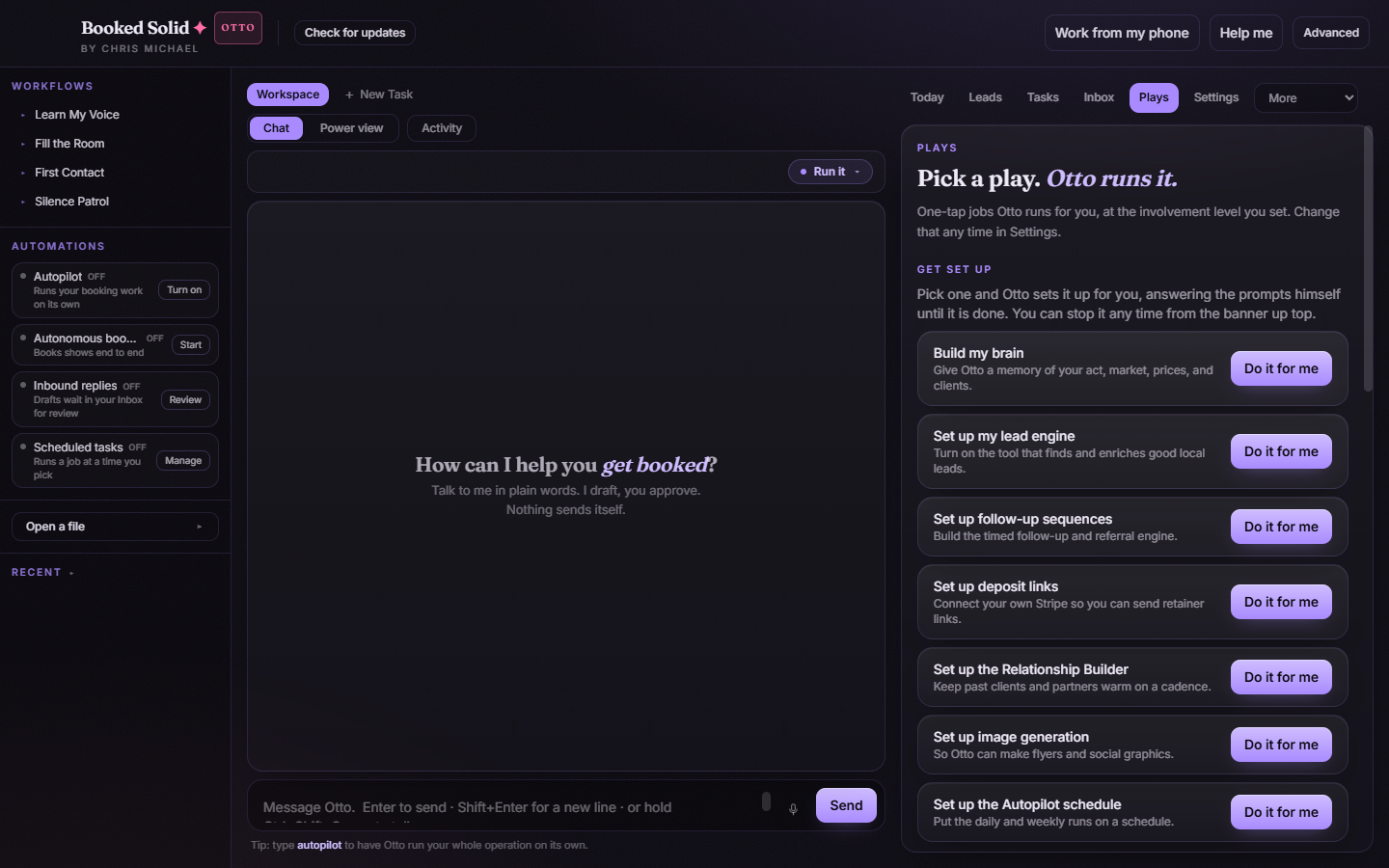
- Status dots: each tab carries a small dot that tells you its state at a glance - amber means the task is working, coral means it is waiting on a reply from you.
- + New Task: opens a fresh task tab. When you reach the tab cap, the button hides until you close a tab.
- Switching tabs: click freely between tabs. Nothing is lost - each tab keeps its own session running while you look elsewhere.
Closing a tab
Click the X on a tab to close it. If the task is still working, a confirm modal appears first: Close this task? with two choices, Keep it open or Close it. Closing a working task stops its chat and its work, and that cannot be undone, so the app makes sure you mean it.
Chat and Power view
The Chat | Power view switch changes how you see the same task:
- Chat: the default plain-words conversation view. This is where most performers live.
- Power view: the built-in terminal for power users. There is a separate article on it if you are curious.
The Activity button
Next to the view switch sits Activity. When an engine job is running it shows a green running dot. Click it to watch the work stream step by step on the Board and Live views.
The engine banner: see and stop running jobs
When an engine job is running (a play, a recipe, Autopilot, or the first win), a banner appears showing the job title and the current step, along with a watch it in Activity link that jumps you straight to the live view.
The banner also carries a Stop (or Turn off) button. This is the quickest way to halt any running job: one click and the work stops. You never need to hunt through menus to regain control.
A good working rhythm
- Press + New Task for each separate piece of work.
- Watch the dots: amber tabs are busy, coral tabs need your answer.
- Use Activity to watch longer jobs, and the banner's Stop if you change your mind.
- Close tabs when done, and reopen old conversations any time from the sidebar's Recent list.
Still stuck? Submit a ticket from this help center and we'll take it from there.
Was this article helpful?
That’s Great!
Thank you for your feedback
Sorry! We couldn't be helpful
Thank you for your feedback
Feedback sent
We appreciate your effort and will try to fix the article