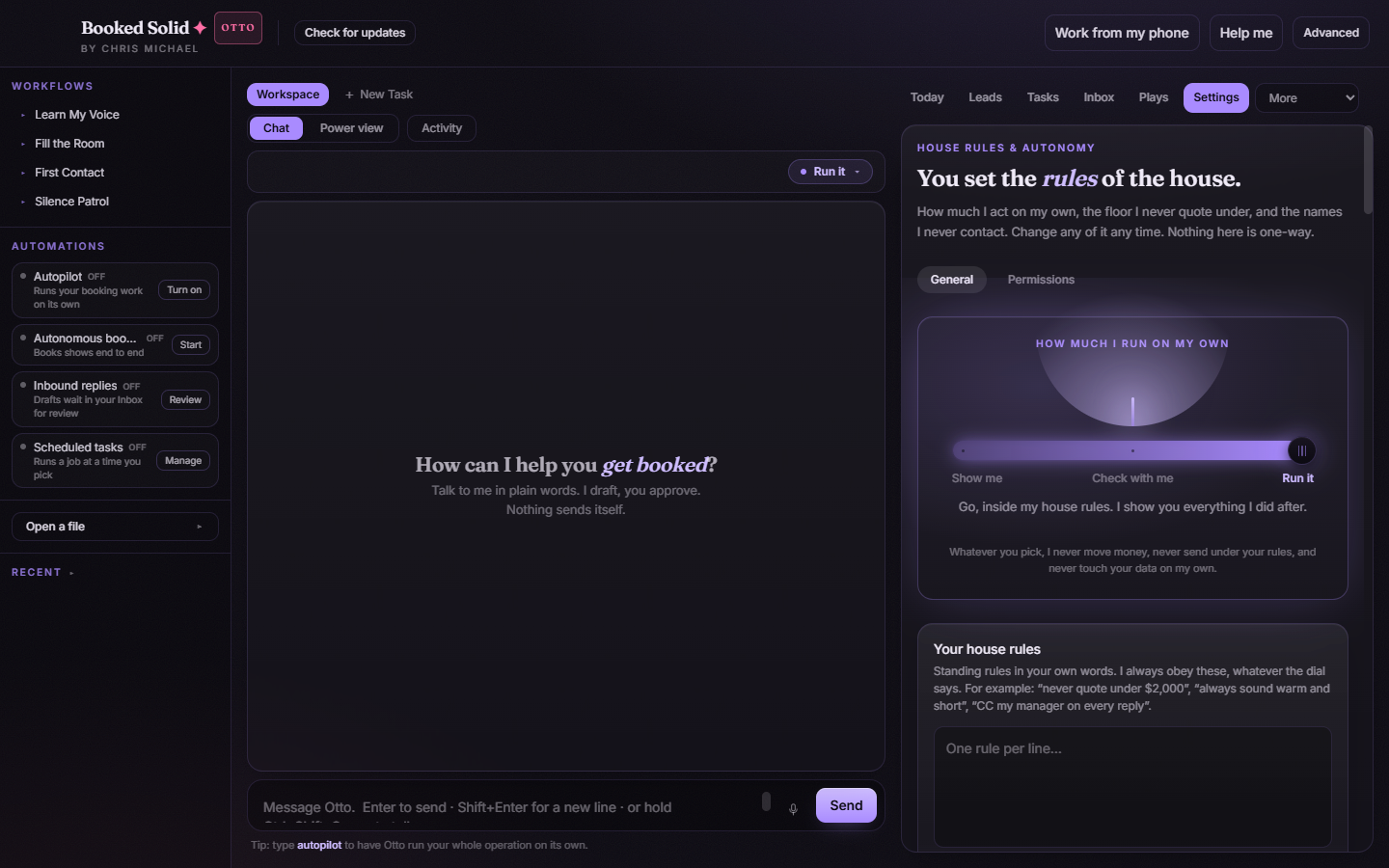
The Permissions sub-tab is your reach control room: it shows what your computer has allowed the app to do, and lets you decide, tool by tool, whether each connected integration can only read, only write, or both - plus whether outgoing drafts always wait for your OK.
Open the Permissions sub-tab
- Open the Settings tab in the right pane.
- Click Permissions, the sub-tab next to General.
Computer permissions
At the top is a compact list of the permissions your computer grants the app. Each item that still needs granting has an Allow button, or an Open Settings button that jumps you to the right spot in your operating system's settings when the OS has to do the granting itself.
Per-tool access: read, write, or both
Below the computer permissions, every connected tool has an access select with three levels:
- Read-only: the tool's data can be read, but nothing is ever written or sent through it.
- Write-only: the app can write through the tool but not read from it.
- Read & write: full access in both directions.
For tools that are read-only by nature, the select is disabled - there is simply no write capability to grant.
Drafts need your OK
Every writable tool also has a Drafts need your OK toggle. With it on, anything outgoing through that tool waits for your approval before it goes - even when your autonomy dial is set to Run it. This is the belt-and-suspenders option for tools where a wrong send would sting.
One special case: for Microsoft 365 the toggle is forced on and cannot be switched off. Outgoing Microsoft 365 drafts always wait for your approval.
Widening a discovered integration from read-only
When the app discovers an integration, it can start life as read-only. To let it do more:
- Open Settings > Permissions.
- Find the tool in the per-tool list.
- Change its access select from Read-only to Read & write (or Write-only, if that fits better).
- Decide whether to leave Drafts need your OK on. Keeping it on means the wider access still cannot send anything without you seeing it first.
You can narrow a tool back down the same way at any time - none of these choices are permanent.
Still stuck? Submit a ticket from this help center and we'll take it from there.
Was this article helpful?
That’s Great!
Thank you for your feedback
Sorry! We couldn't be helpful
Thank you for your feedback
Feedback sent
We appreciate your effort and will try to fix the article