This article shows you how to restore a Booked Solid OS backup, what the safety net does behind the scenes, and why a few settings do not come back with it.
Nothing is destroyed, ever
Restoring replaces the contents of your Booking HQ with what is in the backup file, but the app protects you twice before that happens:
- A safety copy comes first. Before anything is swapped, the app takes a compressed copy of your current Booking HQ. If that copy cannot be made, the restore stops and nothing is touched.
- Your old workspace is kept, not deleted. After the swap, the workspace you had is left sitting next to the restored one, in a folder named like <name> before restore <date>. Look through it whenever you like, and delete it yourself once you are sure you do not need it.
Why some settings do not come back
A backup is data, not authority. Restoring applies only quiet preferences from the backup, like theme, language, model choice, and colors. Everything that could act on its own or unlock something stays exactly as it is on this computer:
- Watch folders and scheduled tasks are not changed by a restore.
- Your sign-in and account state stay as they are on this machine.
- API keys are deliberately never inside a backup at all, so a backup synced to a cloud folder can never leak your secrets. After restoring on a new computer, re-add your keys in the app.
Steps to restore
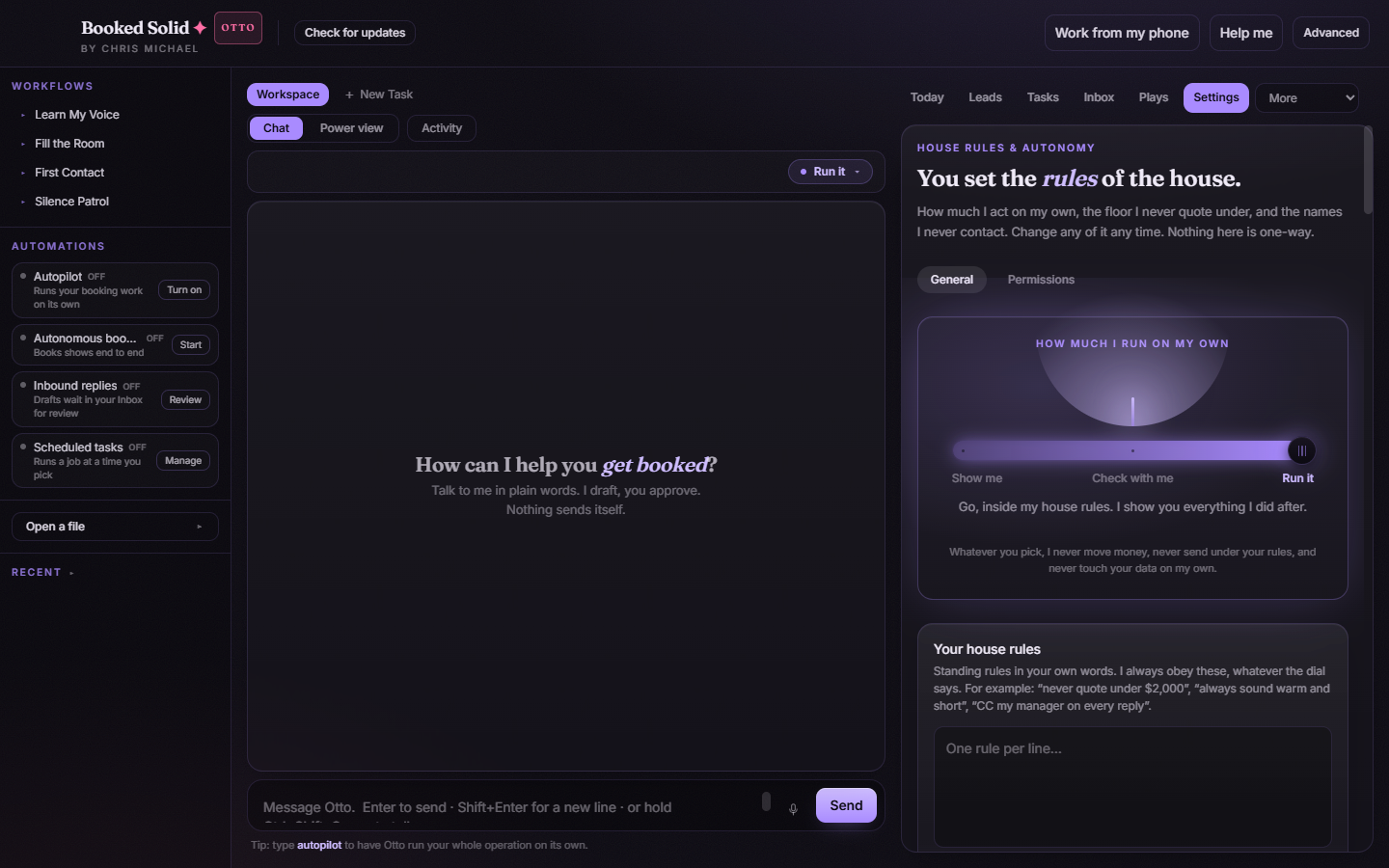
- Open Settings and find Restore a backup in the Booking HQ workspace section.
- Click Choose backup and pick your backup file (they are named like BookedSolid-Backup-YYYY-MM-DD-HHMM.tar.gz). The app confirms with "Backup selected. Nothing has changed yet."
- Click Restore selected backup and wait for the note that follows.
To verify the result: check that your leads and files look right in the app, and confirm the before restore folder is sitting next to your Booking HQ. If you restored on a new computer, re-add your API keys so your connections work again.
If the restore is refused
The app checks every archive before opening it, and the refusal message tells you why:
- "That backup is not safe to open." - the archive contains unsafe paths. Use a different backup.
- "That backup is too large to restore safely here." - the file is bigger than the app will accept. Use an earlier, smaller backup.
- "That backup contains links and was left unopened." - the archive has link entries, which restore never accepts.
- "That does not look like a Booked Solid backup." - you picked a file that is not one of the app's own backups.
In every refusal case, your current Booking HQ is untouched.
Still stuck? Email bookedsolid@kivimedia.freshdesk.com and a person will help.
Was this article helpful?
That’s Great!
Thank you for your feedback
Sorry! We couldn't be helpful
Thank you for your feedback
Feedback sent
We appreciate your effort and will try to fix the article