Your booking business lives on your own computer, in one folder you can see, open, and back up yourself. Booked Solid OS is a desktop app, and everything it knows - your leads, gigs, drafts, notes, and history - sits in a local folder called your Booking HQ. Nothing about your business is parked on someone else's server just to make the app work.
Your Booking HQ: one local folder holds everything
The Booking HQ is the single home of your data. Every screen you see in the app - the Today briefing, the Dashboard, your relationships - is read live from this folder on your machine.
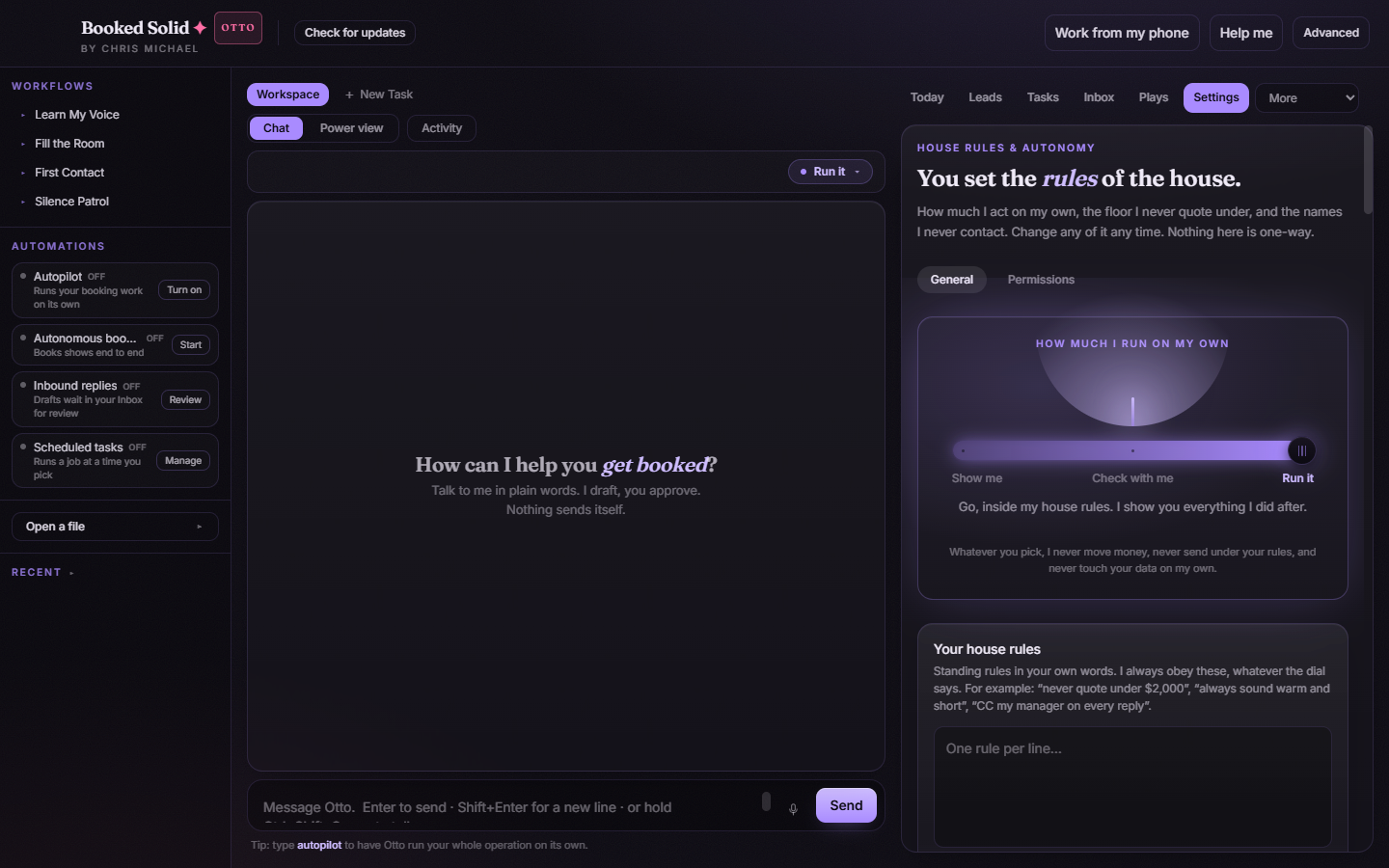
- Open the Settings tab and stay on the General sub-tab.
- Scroll to Your Booking HQ. The exact folder path is shown right there, so you always know where your work lives.
- Use Change to pick a different folder, or Find my existing Booking HQ if you already have one from before. The app confirms with Use this one / Not this one before switching.
Even helper features respect the folder-first design. When you drop a file into a watch folder, the app copies it into the Booking HQ inbox - the original file never moves.
Backups keep your work, never your keys
In the same section of Settings you'll find Restore a backup: choose a backup, then click Restore selected backup. Before any restore, your current Booking HQ is copied first, so a restore can't silently erase recent work. One important privacy detail: your connector keys are never included in a backup. A backup file contains your booking work, not your credentials.
The key vault: paste a key once, then it disappears from view
When you connect a service on the Connectors tab, you can paste its key manually: click Paste key, give it a label, and enter the key in a password-style field, then click Save securely. From that moment the key is encrypted in the vault and never shown again - not in the app, not in a backup. You can click Remove key at any time to delete it. If your computer's secure storage isn't available, the app shows a clear warning banner instead of quietly saving your key somewhere less safe.
Usage shown in plain volume, never tokens or dollars
Want to know how much you've used the assistant in this session? Open the Advanced dropdown in the top bar and check the This session usage readout. It shows plain volume - a simple sense of how much work has happened - and never counts tokens or dollars at you. There is no meter ticking behind your back.
Want fully on-machine processing? Use Local AIs
If you want AI work to stay entirely on your computer, open the Connectors tab and find the Local AIs section. From there you can click Get Ollama (it opens ollama.com/download), see any models already installed with their sizes, and download models from a curated catalog with a live progress line and a Stop button. Local models run offline and free, so nothing needs to leave your machine for those runs.
The short version
- All your data lives in one local Booking HQ folder, and the path is always visible in Settings.
- Pasted keys are encrypted, never shown again, and never included in backups.
- Usage is reported as plain volume - never tokens or dollars.
- Local AIs let you run models fully on your own machine, offline and free.
Still stuck? Submit a ticket from this help center and we'll take it from there.
Was this article helpful?
That’s Great!
Thank you for your feedback
Sorry! We couldn't be helpful
Thank you for your feedback
Feedback sent
We appreciate your effort and will try to fix the article