Booked Solid OS runs on your computer, and your work stays on your computer. This article explains exactly when the app talks to the account service, what it sends, and what it never sends.
When the app contacts the account service
The app reaches out only in these moments:
- When you act: signing in, activating a license code, or resetting a password. These only happen when you press the button.
- At launch: a quick check that your subscription is still active. If the service cannot be reached, the app tries once more about 30 minutes later.
- Every 6 hours while running: the same quiet subscription check.
That is the whole list. There is no background traffic beyond confirming that your account is in good standing.
What the check contains
The routine check sends your session token so the service can confirm the subscription. The answer that comes back is your username, your plan, and your tier. That token is stored in your computer's own secure keychain, protected by the operating system.
What never rides along
- Your work: gigs, emails, contacts, drafts, and settings never travel on account checks. They live on your machine.
- Your secrets in the logs: the app's own log records only the name of the action that ran. Your license code, password, email, and token are never written to the logs.
What happens when the service is down
A server outage or a dropped connection is treated as "unreachable," and unreachable changes nothing on your machine. You stay signed in, everything keeps working, and the app simply tries again later. Once signed in, you can work fully offline for 14 days before the app asks for one quick connection to reconfirm the account. Only an explicit refusal from the account service, such as a paused subscription, ever changes your local sign-in state.
Good to know
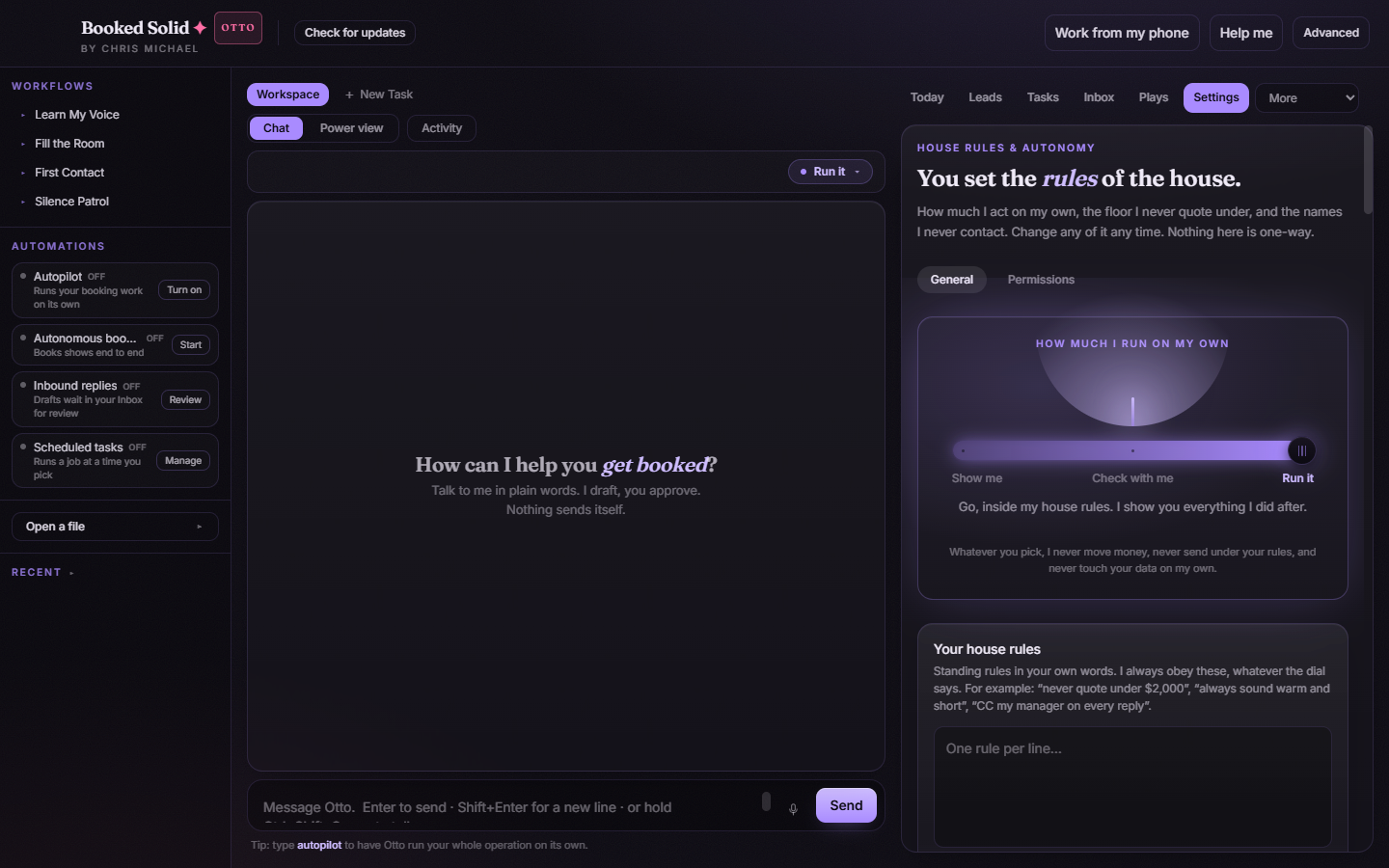
You can see your account status any time under Settings > Your account, which shows who is signed in and the license type.
Still stuck? Email bookedsolid@kivimedia.freshdesk.com and a person will help.
Was this article helpful?
That’s Great!
Thank you for your feedback
Sorry! We couldn't be helpful
Thank you for your feedback
Feedback sent
We appreciate your effort and will try to fix the article