When an update refuses to land, it is almost always one of three things: a failed check or download (the update window's error state), a Mac running the app outside the Applications folder, or a connection problem. Work down this list in order - and remember that nothing here risks your work, since updates never touch your saves.
Step 1: Run a manual check
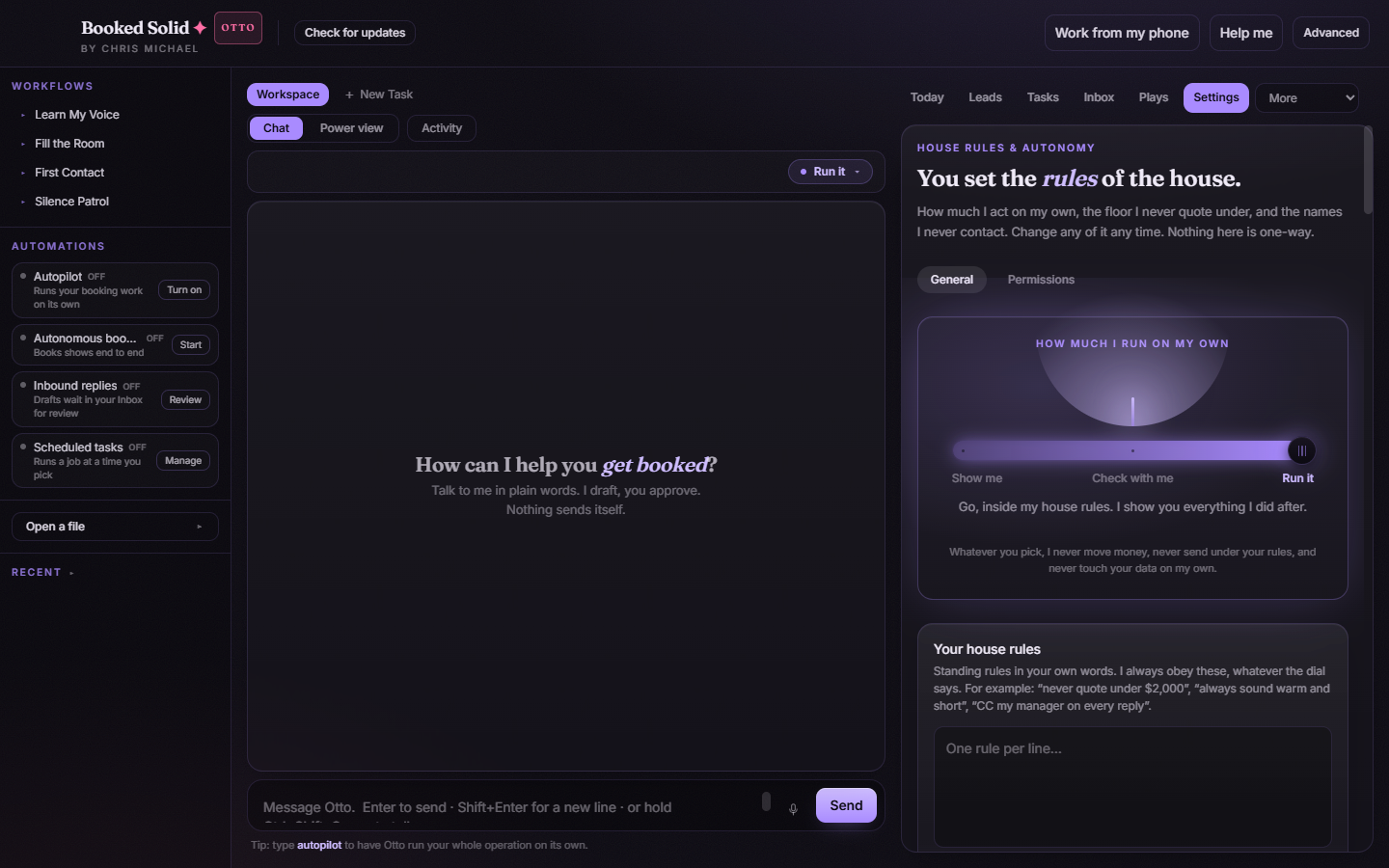
- Click Check for updates in the top bar.
- Watch the update window: it should move from checking to either none (you are already current), available/downloading, or ready.
- If it reaches ready, click Restart & install and you are done.
Step 2: If the window shows an error
The error state means the check or the download itself failed. In that order, try:
- Close the update window, then quit and reopen Booked Solid. The app re-checks automatically on every launch, and a fresh start often clears a failed download.
- Click Check for updates again once the app is back up.
- Confirm your internet connection is working. If you are on a network that restricts downloads (office Wi-Fi, VPN), try again from another connection.
Step 3 (Mac only): make sure the app is in Applications
If the update window asks you to move the app, it is running from the .dmg or your Downloads folder, and the updater cannot replace its files from there. Quit the app, drag it into Applications, eject the disk image if one is mounted, and relaunch from Applications. Full steps are in "Install Booked Solid on a Mac" in this folder.
Step 4: Reinstall manually
If the auto-update keeps failing, install the latest version by hand. It installs right over your existing copy, and your work and saves are untouched.
- Download the latest installer using the same link you used originally. If you no longer have it, submit a ticket from this help center and we will send you a fresh one.
- Windows: run the .exe. If the blue "Windows protected your PC" screen appears, click More info, then Run anyway (see the Windows install article in this folder).
- Mac: open the .dmg, drag Booked Solid into Applications, and choose Replace when asked.
- Open the app and sign back in if it asks.
After a manual reinstall, the quiet auto-update takes over again from the new version.
Still stuck? Submit a ticket from this help center and we'll take it from there.
Was this article helpful?
That’s Great!
Thank you for your feedback
Sorry! We couldn't be helpful
Thank you for your feedback
Feedback sent
We appreciate your effort and will try to fix the article